
To Add new users / Employees
Login as admin / <password> - if you don't know your password then call tech support @ 630.219.1919
Go to Administration Menu -> User Management

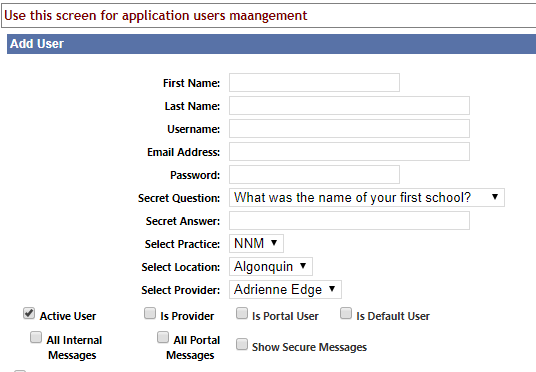
Click on the "Add user" link

Enter the User Details - Name, email and username / password.
Note: password policy - 5 alpha numeric characters long, with 1 Number and 1 special character e.g. user123$
Select the default practice, location and provider for the user
Please check the following boxes
Active User - If the user is Active.
Is Provider - If the user is a doctor / Nurse practitioner. If is Provider is selected then the Provider Drop Down should match the user name.
Is Portal User - if you want the user to have access to patient portal messages.
Note: a valid email id is required for associating portal to the user.
Is Default User - DO NOT USE THIS AND LEAVE IT UNCHECKED
All Internal Messages - If you want the user to see all internal messages for all users. (for e.g. office managers)
All Portal Messages - if you want the user to see all portal messages sent to any users.
Show Secure Messages - If you want the user to see secure (DIRECT) messages from other doctors offices and hospitals
Select Appropriate Role for the User:
Admin - user will have access to all admin functions.
Assistant Doctors - If the user is a nurse practitioner without prescribing permissions.
Billing - For billers without access to ledger
Billing Admin - For billers with access to ledger
Doctor - For Doctors
Front Office - For front office user who will not have access to patient clinical or financials
Nurse - For medical assistants
Reporting - For access to Billing Reports
Restricted - To grant restricted access to billing reports to other providers in the practice.
Scribe - If user is a scribe
DO NOT USE THESE ROLES:
Patient
Transcriptionist
Emergency